![Final_Logo_FHM.png]](https://knowledge.fullhealthmedical.com/hs-fs/hubfs/Final_Logo_FHM.png?width=287&height=90&name=Final_Logo_FHM.png)
What is Multi-Factor Authentication?
Multi-Factor Authentication (MFA) adds an extra layer of security by requiring users to verify their identity with a second method of verification when signing in to your account.
You will need an authenticator app, such as Microsoft Authenticator or Google Authenticator, to complete your account setup and for future use. Authenticator apps generate a one-time code to verify your identity and login.
Why do we use Auth0?
Auth0 is a leading identity and access management platform and provides a secure and reliable authentication experience including:
- Enhanced security for user accounts.
- Greater protection against compromised passwords.
- Multi-Factor Authentication (MFA) for an additional layer of account security.
- A reliable and resilient sign-in experience.
- Support for enhanced authentication and security capabilities.
How to set up MFA
The first time you sign in, you will be prompted to set up MFA to secure your account. You will need to verify your identity using an authenticator app.
Set up MFA using an authenticator app
- Open your preferred authenticator app, such as Microsoft Authenticator or Google Authenticator, on your mobile device.
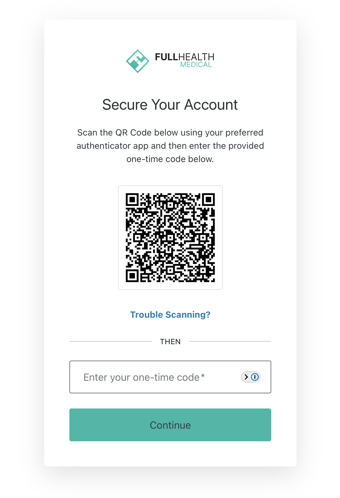
- Use the authenticator app to scan the QR code displayed on the Secure Your Account screen.
- Your authenticator app will generate a six-digit one-time code.
- Enter the code in the Enter your one-time code field.
- Select Continue to complete the setup.
If you are unable to scan the QR code, select Trouble Scanning? and follow the on-screen instructions to configure your authenticator app manually.
Signing in with MFA
-
Once MFA has been set up, you will be required to verify your identity when signing in.
-
Enter the one-time verification code generated by your authenticator app.
-
Follow the on-screen instructions to complete sign-in.